Query Editor
The Query Editor gives you full SQL access to your database through a rich editing experience.
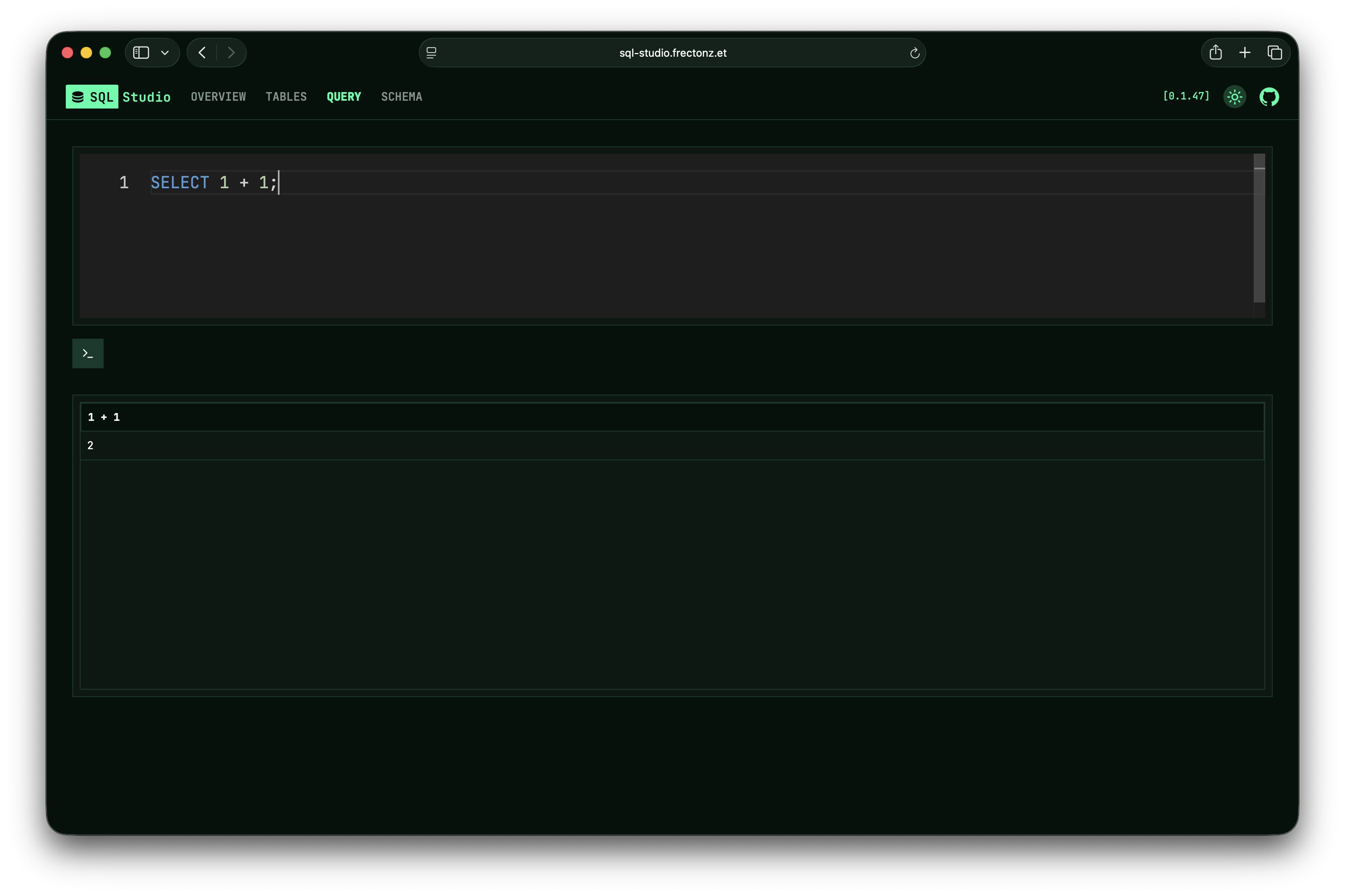
Monaco Editor
SQL Studio uses the Monaco Editor (the same editor that powers VS Code) for SQL editing. You get:
- Syntax highlighting — SQL keywords, strings, numbers, and comments are highlighted
- IntelliSense — auto-complete suggestions for table names and column names, powered by your database's actual schema
- Multi-line editing — write complex queries with full editor support
Executing Queries
- Write your SQL query in the editor
- Click the Run button or use the keyboard shortcut to execute
- Results appear in a data grid below the editor
Auto-Execute
Toggle the auto-execute option to automatically run your query as you type. This is useful for iterating quickly on simple queries.
Query Timeout
Queries are subject to the configured timeout (default: 5 seconds). If a query takes longer, it will be cancelled. You can increase the timeout with the --timeout CLI option:
sql-studio --timeout 30secs sqlite ./my.dbResults Grid
Query results are displayed in a tabular grid showing:
- Column headers — the column names from your result set
- Row data — each row of the result
- Multi-line output — results with multi-line content are displayed correctly
Write and execute SQL queries with Monaco IntelliSense.