Quick Start
Try It Instantly
SQL Studio ships with a built-in sample SQLite database. Run a single command to launch the full UI with no setup:
sql-studio sqlite previewThis creates a temporary sample database and opens http://127.0.0.1:3030 in your browser.
Use Your Own Database
Point SQL Studio at any local SQLite file:
sql-studio sqlite ./my-database.dbOr connect to a remote database:
# PostgreSQL
sql-studio postgres postgresql://user:pass@localhost/mydb

# MySQL
sql-studio mysql mysql://user:pass@localhost/mydb
What You'll See
Once SQL Studio opens, you'll land on the Overview page:
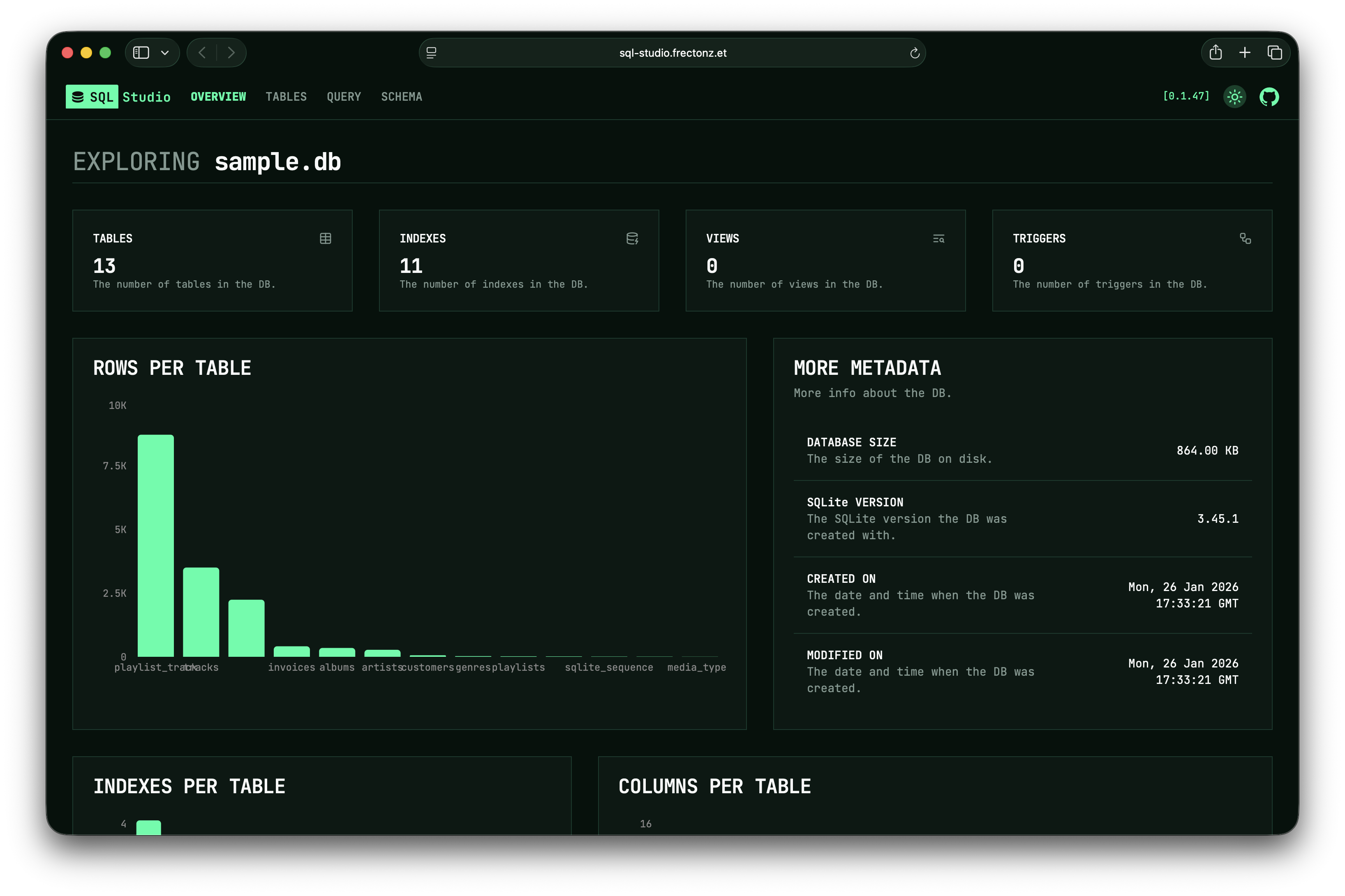
This shows:
- Database info — file name, size, creation and modification dates
- Statistics — total tables, indexes, triggers, and views
- Bar charts — row counts, column counts, and index counts per table
From there, use the sidebar to navigate to:
- Tables — browse individual table schemas and data
- Query — write and execute SQL with IntelliSense
- Schema — view an interactive entity-relationship diagram
Next Steps
- See Databases for connection details for every supported database
- See Configuration for global options like address, timeout, and base path
- See Features for an in-depth look at each UI page
Get up and running with SQL Studio in under a minute.